
AI creation studio

AI lip sync: a talking-avatar workflow

Create a paid talking avatar on Vidione with a script, portrait and voice. After signing in, you can also edit clips on a browser timeline without a subscription.

Learn the difference Talking avatars Timeline editing
Portrait + script + voice

Open Vidione’s home page, sign in, then enter your script, portrait and voice there. Nothing here is prefilled.

Open Vidione

Link only · no script or media is sent · AI generation requires a subscription

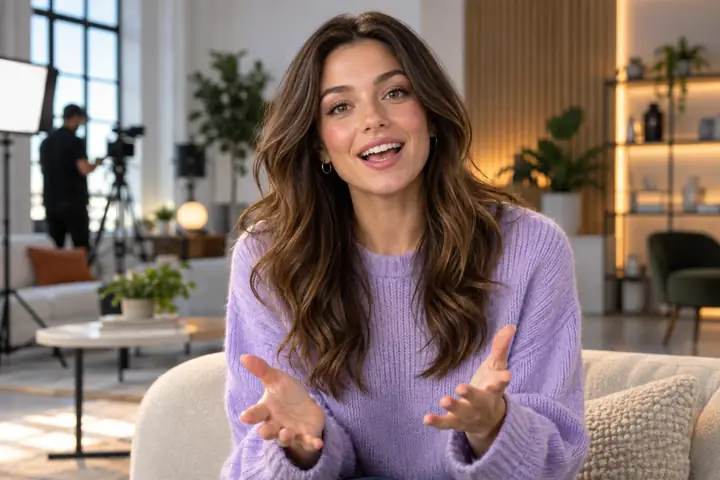
A presenter in a studioPresenter introduction
An illustrated fox and robotCharacter concept
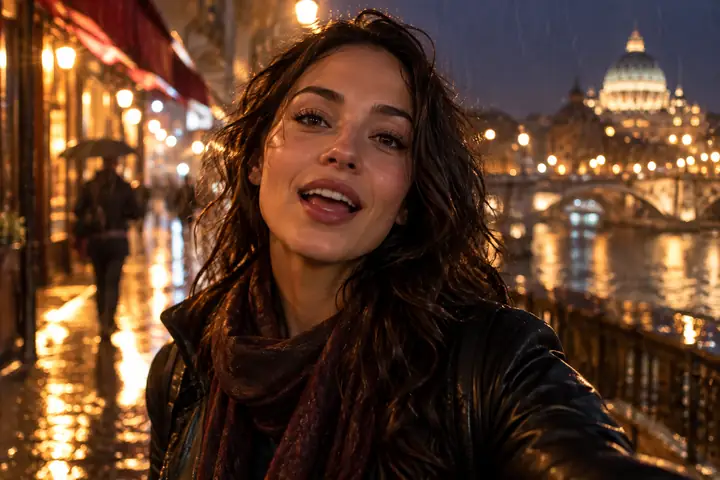
A traveler in city lightsTalking scene idea
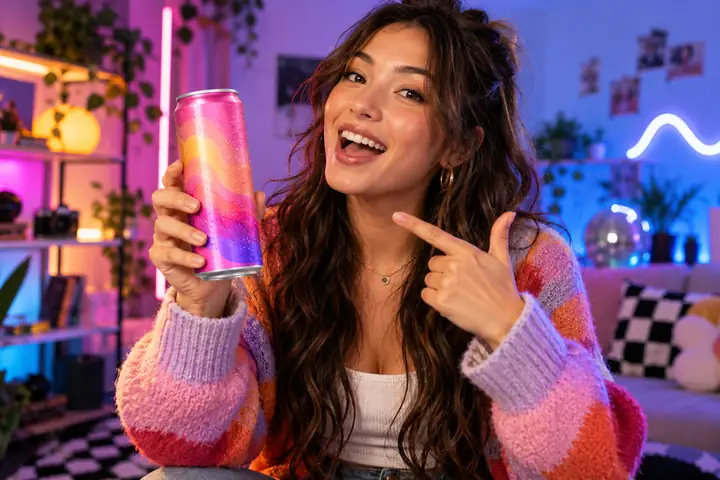
A creator and beverage productProduct concept

Choose the right workflow

Talking avatars and timeline editing are different tools

Vidione offers browser timeline editing after sign-in without a subscription. Its talking-avatar generation uses a paid plan; your script, portrait, and voice are entered on Vidione, not sent by this page.

DimensionBrowser timeline editorTalking avatar (paid)
Start withYour own clips on a timelineYour script, a portrait image, and a selected voice
Main taskArrange clips and add subtitlesGenerate a person speaking your script with lip movement
OutputMP4, WebM, or CapCut draft; export up to 1080pA generated talking-avatar video; subscription required
Not offeredOne-click article or URL to videoVideo dubbing, singing performances, or reference-action motion control

What the linked tool supports

Make a portrait speak with a script and voice

Vidione's paid talking-avatar workflow uses a person image, your written script, and a voice selection. It is not a tool for replacing speech in an uploaded performance or making singing characters.

Talking avatar (paid)

Provide a person portrait, type your script in Vidione, and choose a voice for a speaking video.

  • Person image rather than a source action video
  • Speech rather than a promised singing performance
  • Generation requires a subscription
Open Vidione

Browser video editor

Sign in to work with clips on a timeline, add subtitles, and export your finished edit.

  • No subscription required for timeline editing
  • Export MP4, WebM, or CapCut draft
  • Exports available up to 1080p
Open Vidione
Illustrated ideas for video scenes; examples, not generated outputs

From script to a talking presenter

For a lip-synced talking avatar on Vidione, bring a portrait, write the dialogue, and select a voice. Text-to-video and image-to-video generation are separate subscription workflows; a reference action video, Seedance motion control, singing, and article/URL-to-video are not promised.

Write a script

Enter the words on Vidione after signing in. Nothing typed here is carried over.

Provide a portrait

Use a person image as the talking-avatar source.

Choose a voice

Pick a voice for speech, then review the generated result.

Finish an edit

Arrange clips and subtitles in the browser editor; check export settings before delivery.

Video types

Story ideas to plan before you create

The images below are creative examples, not proof that every workflow is available on Vidione. Its supported lip-sync path is a paid talking-avatar video from script, portrait, and voice.

Characters exploring a mysterious dark house with a flashlight, cinematic vertical composition.
01

Short films, dramas & cinematic stories

This image illustrates a story idea. AI generation is subscription-based and specific model capabilities should be checked on Vidione.

AI VideoConcept onlyAI ImageAI Voice
Animated fox and friendly robot discovering a glowing crystal in a sunlit forest, expressive character scene.
02

Animation & character videos

Cartoons and animals are inspiration here; the linked talking-avatar workflow uses a person portrait, script, and voice.

AI VideoAI Lip SyncAI ImageConcept only
Presenter addressing a multilingual video audience in a modern studio with subtle global graphics.
03

Localized and multilingual videos

Prepare translated dialogue as a new script and check Vidione voice choices; automatic dubbing of existing footage is not offered.

Video TranslatorAI VoiceAI AvatarAI Lip Sync
Singer and band performing beneath vivid concert lights, energetic wide performance shot.
04

Music and performance ideas

These are inspiration for planning, not a singing-video feature in the linked product.

Concept onlyAI VoiceAI Video
Creator presenting a colorful beverage product in a bright commercial setup, polished advertising frame.
05

Ads & product videos

Explore product stories, commercial scenes, product demonstrations, and variations for social campaigns.

AI AdsAI ImageAI Video
Digital presenter speaking in a modern studio with clean lighting and a confident expression.
06

Talking presenter and avatar videos

Use a script, person portrait, and voice to create a paid spoken talking-avatar clip.

AI AvatarAI Lip SyncAI Voice
Creator filming colorful street fashion content with friends, spontaneous social media atmosphere.
07

Social & creator videos

Turn quick ideas into engaging social scenes, creator clips, short-form stories, and audience-ready content.

AI VideoAI VoiceAI Image

Supporting tools

Build the characters, visuals, and voices your video needs

Prepare reusable characters, visual assets, and speech for any video workflow.

AI Avatar

Bring a person portrait, script, and selected voice to Vidione’s paid talking-avatar workflow; repeatable outfits and expressions are not promised.

Open Vidione

AI Image

A suitable person portrait is the source for Vidione’s speaking-avatar workflow. AI image creation is a separate subscription feature; singing is not promised.

Open Vidione

AI Voice

Select a voice for your script when making a paid talking-avatar clip; available voice choices should be checked on Vidione.

Open Vidione

Why Lip Sync

Choose a realistic lip-sync workflow

Use Vidione for script-led talking avatars or browser timeline edits; it does not preserve or replace speech in an existing source performance.

01

Natural lip sync for existing media

Use a script, person portrait, and voice to generate a speaking avatar with a paid Vidione subscription; dubbing uploaded footage is a different workflow.

02

A focused workflow for character content

Write a fresh script for a person portrait and choose a voice; Vidione does not promise to preserve an uploaded performance.

03

Start from the media you have

For a talking avatar bring a person image, script, and voice. For editing, bring your own footage to the browser timeline.

04

More visual options without filming

Use timeline editing for footage and captions. Subscription-based generation is separate from the free editor.

05

Match the model to the shot

Check current model choices on Vidione; this page does not select a model or transfer a prompt.

06

All-in-one AI video creation

Start with browser timeline editing or a paid talking-avatar clip; reference-motion control is not a supported handoff.

How it works

Build a talking-avatar clip in three steps

On Vidione, sign in and choose the paid talking-avatar workflow; generation is not started on this site.

01

Start with the right source

Sign in on Vidione, then bring your own clips for timeline editing or a person portrait for paid talking-avatar generation.

02

Create the performance and scenes

For a talking avatar, enter a script and choose a voice; no reference-action upload or singing-video outcome is promised.

03

Bring the outputs together

Review your results on Vidione, then use the timeline editor to arrange clips and subtitles before export.

AI video models

Choose by workflow, not by an unsupported model name

Model availability changes. This link opens Vidione’s home page, not a specific model; check its current product choices after signing in.

Creator stories

Practical project ideas, not customer testimonials

The following are illustrative workflow ideas, not verified reviews or endorsements.

Presenter updates

Draft a short spoken script and use a clear person portrait with a selected voice. Paid generation takes place on Vidione.

Explainer clips

Plan captions and arrange existing clips in Vidione’s browser timeline editor after signing in.

Export options

Review MP4, WebM, or CapCut draft export in the editor, up to 1080p.

Bring your next video to life

Open Vidione, sign in, and edit on a timeline or choose paid talking-avatar generation from a script, portrait, and voice. This page does not submit your idea.

Open Vidione

FAQ

Talking-avatar and video-editing FAQs

Lip sync generally aligns mouth movement with audio. The linked Vidione paid talking-avatar route uses a script, a person portrait, and a selected voice for spoken dialogue; this page does not upload audio or media.

Vidione’s supported handoff here is a paid speaking-avatar workflow from a person portrait, script, and voice; uploading an existing performance for video lip sync is not supported.

Some lip-sync tools support illustrated characters. Do not assume Vidione’s talking-avatar route accepts cartoons or animals: use a person portrait, script, and voice as its supported workflow.

Available duration depends on the selected workflow and the partner tool. Start with the media and script you have, then review the available settings in the creation workspace.

Vidione has paid talking-avatar generation for a speaking person portrait; it does not promise singing-video or video-to-video lip-sync input.

Prepare a translated script and check available voices on Vidione; automatic dubbing of uploaded footage is not supported by this handoff.

A recorded source video is not needed for Vidione’s paid talking-avatar route: bring a person portrait, a script, and a selected voice for speech.

Motion control driven by a reference performance is not available in the linked Vidione workflow. Use its paid talking-avatar route for spoken dialogue from a person portrait, script, and voice.

Start creating
Start creating